
Check Enterprise App SSO before changing email addresses with PowerShell
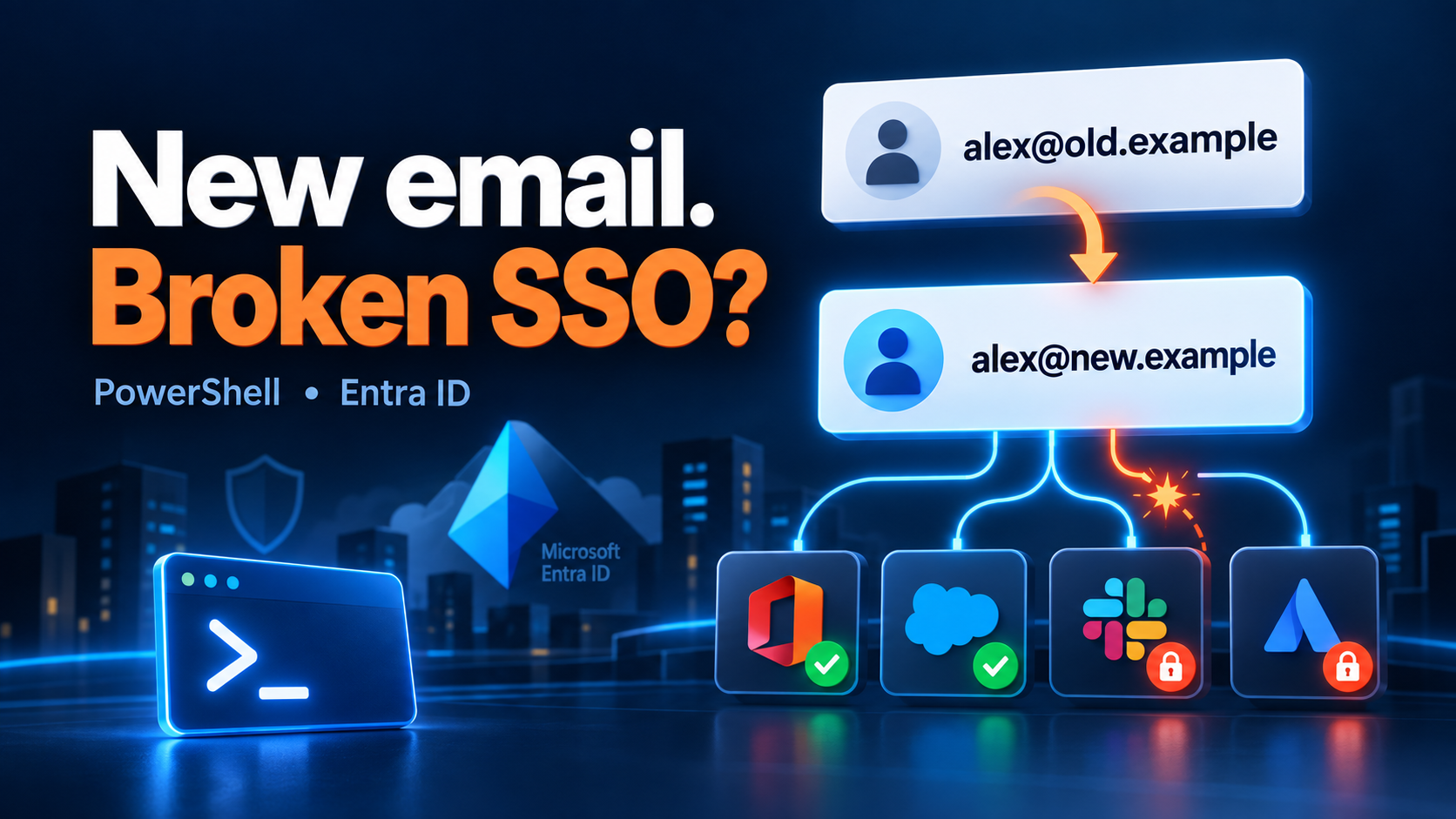
Changing everyone’s email address sounds like an Exchange mail job. Until someone asks which business applications use that address to identify people at sign-in.
You can open each Enterprise App in Entra portal to inspect its SSO configuration. Fine for five apps. Less appealing for a few hundred. This post walks through enumerating your Entra ID Enterprise apps with Microsoft Graph to find the apps, then using an undocumented Entra portal API to retrieve the SSO claims configuration and turn it into a CSV report.
What are we looking for?
With SAML single sign-on, Entra sends the application a signed assertion containing information about the user. The application commonly uses the NameID to match that person to an existing account within the app. If that value changes (because you changed email domain or user’s preferred address), the application might reject the login or create a new account instead of finding the old one.
Entra ID supports attribute sources and transformations for NameID. It’s generally safe to use a static user principal name (UPN) for SSO instead of a changeable email address which is prone to events like rebranding. The important question is therefore: which attribute supplies the identifier, and will our change alter its value?
An email address and a user principal name (UPN) may look identical, but they are separate attributes. Changing the primary SMTP address does not, by itself, mean the UPN changes. Check what your migration actually updates, including the Entra mail attribute after synchronisation. Note the mailnickname property is often used to store short user IDs like AD samAccountName depending on how your Entra Connect Sync is configured.
| Configuration | What to investigate |
|---|---|
NameID uses mail |
Does the change update Entra mail, and will the application recognise the new value? |
NameID uses userprincipalname |
Is the UPN changing too, or in a later migration phase? |
| NameID uses a transformation | Does it read email or UPN, strip a suffix, or insert a fixed domain? Compare the resulting values. |
| NameID uses another attribute | Check whether that attribute changes and whether other claims are used to identify the account. |
| Certificate notification email uses the old domain | Check that renewal notifications will still reach someone. This is separate from the user’s sign-in identifier. |
The report identifies dependencies to review. It cannot prove which applications will break: that also depends on how each application matches and provisions its accounts.
Why use two APIs?
In Microsoft Graph, an Enterprise App is represented by a service principal in your tenant. It is the local application instance; an app registration is a different object. Graph gives us the inventory and properties such as the app’s display name and preferred SSO mode.
The interesting part of this script is retrieving the richer federated SSO configuration that appears in the portal. It calls:
GET https://main.iam.ad.ext.azure.com/api/ApplicationSso/{service-principal-object-id}/FederatedSsoV2
This is an internal Azure/Entra portal API because SSO configuration isn’t exposed by Microsoft’s graph API or the associated PowerShell modules.
Graph does expose some claims-related configuration, including claims mapping policies. The gap here is the portal-specific FederatedSsoV2 response and its defaultClaimIssuancePolicy structure; it is not a property returned by Get-MgServicePrincipal.
This is a bit of a hack. Your mileage may vary. Check one known SAML app against the portal before relying on a tenant-wide export.
1. Prepare PowerShell and connect
Use PowerShell 7 (pwsh), either directly or in the VS Code terminal.
Install and load PowerShell modules to get started
Install-Module Microsoft.Graph.Authentication -Scope CurrentUser
Install-Module Microsoft.Graph.Applications -Scope CurrentUser
Install-Module Az.Accounts -Scope CurrentUser

Import-Module Microsoft.Graph.Authentication
Import-Module Microsoft.Graph.Applications
Import-Module Az.Accounts
Run the module installation once. Run the following sections in the same PowerShell session so the variables remain available. Next, let’s sign in.
$tenantId = '<your-Entra-tenant-GUID>'  # safer to be specific in case your account has guest access to other tenants.

Connect-MgGraph -TenantId $tenantId `
    -Scopes 'Application.Read.All' -ContextScope Process

Connect-AzAccount -Tenant $tenantId -AllowNoSubscriptions

Get-MgContext | Select-Object Account, TenantId, Scopes
Get-AzContext | Select-Object Account, Tenant
Connect-MgGraph authenticates the Graph PowerShell client. Application.Read.All is the documented least-privileged delegated permission for listing service principals and requires admin consent. Your signed-in account must also have the appropriate directory access.
Connect-AzAccount establishes the separate Azure PowerShell session used to request the portal token. -AllowNoSubscriptions accommodates a directory account without an Azure subscription. This report does not query subscription resources.
Verify that both sessions use the intended tenant and account. Graph consent does not grant access to the internal portal API: the signed-in user’s Entra permissions and tenant sign-in policies still apply. The script does not establish a documented minimum role for that internal endpoint, so do not assume successful Graph enumeration guarantees the second request will work.
2. Enumerate Enterprise Apps through Graph
$ssoApps = Get-MgServicePrincipal -All
$ssoApps | Select-Object DisplayName, Id, PreferredSingleSignOnMode
The cmdlet calls Microsoft Graph’s /v1.0/servicePrincipals endpoint. -All handles pagination so we do not stop at the first page.
Id is the service principal object ID. AppId is the application/client ID. The portal URL in this script uses the Entra ID object Id; substituting AppId points at the wrong identifier.
This inventory is broader than SAML applications. It can include managed identities, apps using OIDC and other service principals with no federated SSO configuration. A blank PreferredSingleSignOnMode is not proof that an app has no sign-in dependencies.
3. Request the portal’s token
The uploaded script requests two tokens: one for https://management.azure.com and another for the resource ID below. Only the second token is used by its REST request, so the ARM token can be omitted here.
$portalToken = Get-AzAccessToken -ResourceUrl '74658136-14ec-4630-ad9b-26e160ff0fc6' -AsSecureString | Select-Object -ExpandProperty Token
That resource ID identifies the portal service. Tokens are issued for particular resources; a Graph or ARM token is not interchangeable with this one.
4. Loop over the apps and retrieve SSO settings
This is the sneaky part: repeat the Azure portal request for each service principal, then attach the response to the Entra ID Enterprise App object. Invoke-RestMethod is like curl but also converts the JSON response into PowerShell objects so we can navigate its properties.
# initialise a couple of empty arrays
$ssoAppsWithSSOConfig = @()
$failures = @()

foreach ($app in ($ssoApps | Sort-Object DisplayName)) {
    Write-Host "Processing app: $($app.DisplayName)"
    $ssoSettings = $null

    try {
        # It's a big command with lots of switches so PowerShell splatting the parameters
        $request = @{
            Uri = "https://main.iam.ad.ext.azure.com/api/ApplicationSso/$($app.Id)/FederatedSsoV2"
            Method = 'GET'
            Authentication = 'Bearer'
            Token = $portalToken
            Headers = @{
                'x-ms-client-request-id' = (New-Guid).Guid
            }
            ErrorAction = 'Stop'
        }

        $ssoSettings = Invoke-RestMethod @request
        $app | Add-Member -MemberType NoteProperty -Name FederatedSsoV2 -Value $ssoSettings -Force
        $ssoAppsWithSSOConfig+= $app # append this enriched app object to our array
    }
    catch {
        $failures.Add([pscustomobject]@{
            DisplayName = $app.DisplayName
            ServicePrincipalId += $app.Id
            Error = $_.Exception.Message
        })
    }
}
Compare its NameID source and transformations with the same app’s Attributes & Claims page. If requests return 401 or 403, check the token audience, tenant, expiry and account permissions. If throttled (429), respect Retry-After and rerun failed items. This sample records failures but does not implement automatic retries or token refresh; a long run may need both.
5. Turn the array of objects into CSV
The script reads defaultClaimIssuancePolicy.claimsSchema, finds the entry whose samlClaimType ends in /nameidentifier, and extracts its id. It also pulls out transformation inputs and parameter values.
This is a pattern I’m in the habit of using to make CSV reports. Using select-object expressions to make columns with friendly names and often pre-calculated values that are easier to filter on in Excel.
# build a report of the SSO configuration for each application and export to CSV
$reportCSV = $ssoAppsWithSSOConfig| Where-Object {$_.FederatedSsoV2 -ne $null} | select-object DisplayName,ServicePrincipalType,SignInAudience, AppRoleAssignmentRequired,PreferredSingleSignOnMode,`
    @{name="nameidentifier";expression={($_.FederatedSsoV2.defaultClaimIssuancePolicy.claimsSchema | Where-Object {$_.samlClaimType -ilike '*/nameidentifier'}).id}},`
    @{name="xformReference";expression={($_.FederatedSsoV2.defaultClaimIssuancePolicy.claimsTransformations.inputClaims.claimTypeReferenceId | select-object -Unique)}},`
    @{name="xformRegEx";expression={(($_.FederatedSsoV2.defaultClaimIssuancePolicy.claimsTransformations.inputParameters.value | select-object -Unique) -join ">>")}},`
    @{name="isMail";expression={if (($_.FederatedSsoV2.defaultClaimIssuancePolicy.claimsSchema | Where-Object {$_.samlClaimType -ilike '*/nameidentifier'}).id -eq 'mail') { $true } else { $false }}},`
    @{name="defaultTokenType";expression={($_.FederatedSsoV2.defaultClaimIssuancePolicy.defaultTokenType)}},`
    @{name="certificateNotificationEmail";expression={($_.FederatedSsoV2.certificateNotificationEmail)}}

$filename="$(New-TemporaryFile).csv" # makes a random file in your temp
$reportCSV | export-csv -NoTypeInformation -Encoding UTF8 -Path $filename -Append
invoke-item $filename  # launch the report in whatever app is associated with .CSV

# have a look at failures
if ($failures.Count -gt 0) {
    $failures | Export-Csv -NoTypeInformation -Encoding utf8 `
        -Path './enterprise-app-sso-failures.csv'
}

Write-Host "Inventoried: $($ssoApps.Count)"
Write-Host "Successful requests: $($ssoAppsWithSSOConfig.Count)"
Write-Host "Report rows: $(@($reportCSV).Count)"
Write-Host "Failed requests: $($failures.Count)"
Write-Host "Report: $filename"
Reading the results without false reassurance
Start with isMail = True, then review UPN sources and transformations. Here is what the less obvious fields actually mean:
| Column | Meaning and limitation |
|---|---|
nameidentifier |
The matching schema entry’s id, not a user’s actual NameID value. Inspect the full policy where the mapping is unclear. |
isMail |
Tests only whether the matching entry has the ID mail. False does not mean unaffected or fully assessed. |
xformReference |
Unique input claim references across the returned policy’s transformations. These are not necessarily all part of the NameID transformation. |
xformRegEx |
Despite the name, this contains unique transformation parameter values joined with >>. They are not necessarily regular expressions, and flattening loses the relationship between each transformation and its parameters. |
defaultTokenType |
The token type reported by the returned policy. |
certificateNotificationEmail |
The configured certificate notification destination, separate from the user’s identity claim. |
For example, a rule that strips @oldcompanyname.com and appends another suffix needs a closer look. It might preserve the identifier or stop matching after the migration. The flattened CSV alone cannot tell you which. Read the full transformation and compare its output for representative before-and-after values.
A successful request with no configuration does not appear in the main report. Neither does a failed request. Reconcile the counts and the failures CSV against the inventory, and manually review missing or incomplete entries. This is especially important because the starting inventory includes non-SAML service principals. You could probably improve the script to filter more initially.
Use the report to plan the change
For each candidate app, record the current source attribute, any transformation, an example current identifier, the expected new identifier and the application owner’s migration action. Use synthetic examples in shared documentation.
Then test a pilot account: check the identifier actually issued, verify the application finds the existing account, and confirm its roles and data remain attached. Coordinate any application-side username changes with provisioning and the email/UPN cutover. Keep the old values available for rollback.
This script concentrates on federated SSO configuration. It does not audit every OIDC/OAuth claim, SCIM provisioning mapping, application-side account key, domain restriction or conditional claims rule. Those remain separate checks. Keeping the old address as a mail alias may preserve email delivery, but does not guarantee that the old identifier will still be sent during SSO.
The useful outcome is an application review list backed by configuration evidence, ready for app owners to validate before the domain change.
Find more IT Infrastructure tips at blog.alexmags.com