
How to disable Microsoft 365 Copilot Chat

Microsoft includes Microsoft 365 Copilot Chat in their business and enterprise Office365 services. If your organisation is not ready for this AI service, here’s how to disable it for now.
TL;DR How corp M365 admins can find and block the Office 365 integrated app called Copilot, with publisher Microsoft, in the M365 Admin Centre.
The cautious approach
Some organisations take a cautious approach to AI services. They want them off by default followed by a considered and gradual incremental enablement. Fortunately, like Office365, Microsoft’s AI services are well suited to data security sensitive, regulated industries. So after initially disabling Microsoft Copilot services, you can work on enabling again after review, configuration and testing.
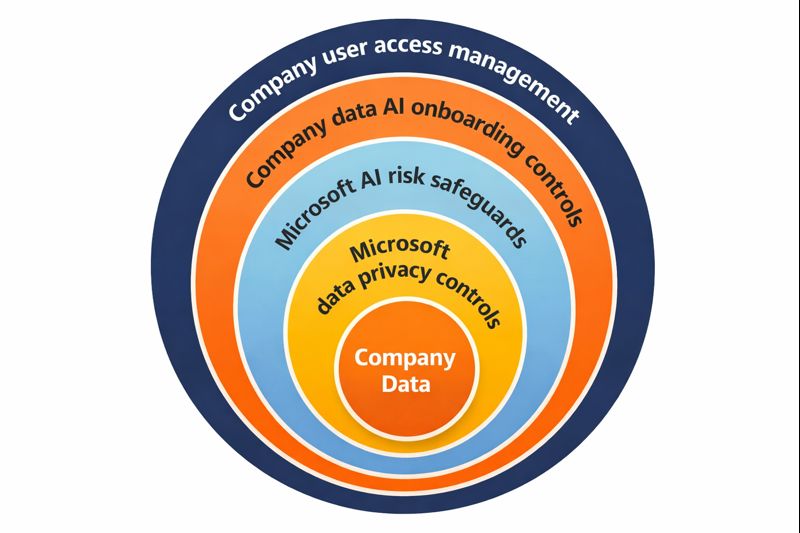
You have a combination of Microsoft’s Enterprise data protection in Microsoft 365 Copilot and Copilot Chat commitments, plus you can design your own processes and controls. For example, if you assume your org doesn’t have the best access management on SharePoint sites, you can block Copilot access to SharePoint sites where access management might be absolute garbage unreliable and then opt-in sites to SharePoint once the access has been reviewed and corrected through whatever access management system you use.
You’ll opt-in/enable sites for copilot and also, for better results, mark sites as Authoritative if results from these sites should be considered official, trusted, and verified such as policy documents and reference data. If you’re using Office365 Sensitivity labels you can exclude that data from Copilot based on data classification.
A combination of:
- Microsoft’s data protection
- Copilot respecting user access permissions to data and not surfacing anything users don’t have access to anyway
- Office365 sensitivity label controls
- You own processes to opt-in organisation data to Copilot
Gets you a route to safely enable Office365 AI features. I love an onion diagram so here you go! Checkout the Office smart art process diagram for making your own.
The Microsoft adoption team have a Copilot Control System getting started playbook to help you guide you org through this.
Microsoft Copilot guidance
Starting with Microsoft provided resources: If your organization has an Enterprise Agreement, or is over a certain number of M365 licences (500?) you’ll have a Microsoft account team who’d love to help you progress through your deployment of a Microsoft service and get nice and locked in 😜. Check out the Fasttrack copilot engagement here.
Checkout Microsoft’s Advanced Deployment guides for M365 including copilot also.
Which Copilot?
Microsoft has multiple AI services you’ll need to consider if you’ve been tasked with managing access to AI:
Consumer Microsoft Copilot
This is for personal use. It’s available at https://copilot.microsoft.com/. You’d manage access to this from work devices via your inline web proxy service, or at the endpoint using Microsoft Defender web content filtering. Tip: If you have Microsoft Defender for Endpoint, or you’re forwarding proxy logs, you get can an overview of AI website usage in Microsoft Defender Cloud App Discovery (formerly part of the MCAS product). Reports showing unsanctioned use of consumer AI services (shadow IT), especially the amount of company data uploaded, helps build the case for providing staff with company managed LLM alternatives to help them get their work done.
Microsoft 365 Copilot Chat
This is for work use with limited functionality. It’s available at https://m365.cloud.microsoft.com/chat/ and appears in Office365 web portals. It can interact with user’s files (OneDrive) but not across organisational data in SharePoint. See the Microsoft Copilot Chat Success Kit from the Microsoft Adoption team. This is enabled for everyone with an M365 licence and, unlike other Office365 features, it can’t be enabled/disabled as a licenced feature.
To disable Microsoft 365 Copilot Chat, read the Manage Microsoft 365 Copilot Chat article a few times first. “Pinning” is discussed but this doesn’t block use of Copilot chat, it only decides how “in your face” the service is. The section Remove access to Copilot Chat describes how to block. Like Outlook add-ins, Copilot Chat is an “integrated app”. Find Integrated Apps in the Microsoft 365 admin centre and search for an app called “copilot” from Microsoft. First block the app for the organisation. This will remove Copilot Chat for all users. Changing the scope of who can use it doesn’t remove it from users who have already “installed” it. Later you’ll want to create a security group to manage which users get Copilot in M365 “deployed” again.
Microsoft 365 Copilot
This is an additional licence and enables full functionality. It’s also available at https://m365.cloud.microsoft.com/chat/. In the web view the web/work mode options appear. Copilot items also appear in the Office app ribbon in Work, Excel, PowerPoint, Outlook. This edition has access to your mailbox and also the files you have access to in SharePoint. See the Microsoft Copilot Success Kit from the Microsoft Adoption team. To disable this version of Copilot, simply don’t assign the licence. Use group based licence assignment to target licences to the right people in your organisation. You’ll stil have to manage access to Copilot Chat above since this is enabled for everyone with an M365 licence and can’t be managed as a licenced feature.
Windows AI
Oh, there’s also Windows desktop OS AI features too, such as AI in Notepad and Paint. Manage this via Microsoft Intune Device Configuration. There’s a Windows AI category.
The path to configuring and enabling copilot
This article focuses on turning it off. There’s quite a lot to review and configure on the path to enabling Copilot again at your organisation:
- Your security groups to describe who should have it enabled and who should have it blocked. Create an allowed group and a blocked group. Eventually it’ll be allowed for everyone and blocked for a subset of staff.
- M365 Copilot company wide config in the M365 Admin Centre.
- M365 Apps (aka Office desktop apps) configuration for Copilot
- Copilot Office365 integrated app
- Purview DLP policy for copilot interactions
- Copilot organisational data connectors (SharePoint, Azure file shares, AWS S3, Atlassian, Enterprise intranet and websites)
- Copilot agent settings and access to Copilot Studio
- Copilot in Edge browser
- Windows AI features in the desktop
- Microsoft Teams Copilot app deployment and pinning
- Microsoft Teams Copilot app config (in meetings and channels)
- Copilot in Power Platform and Dynamics 365
- AI providers and models not enabled by default. Claude is hosted by Anthropic, not Microsoft, so your data would be processed dy Anthopic as a sub processor (and outside of EU).
- Agents (Microsoft authored and 3rd party)
- Copilot custom dictionary. This helps copilot with making sense of your company internal terms, jargon and three letter acronyms (TLAs) which should always be qualified like that the first time you use them in documentation and communications!
- Purview Data Security Posture Management for AI. Take care not to enable collection of prompts and responses if you don’t want to have to hand these over in a legal investigation. Lookout for feature to block browsers that don’t have Purview DLP extension.
- Copilot app in Microsoft store
- Copilot mobile app (there’s two, the consumer one and the M365 one…)
- Sorting out access management on SharePoint document libraries
There’s quite a lot to consider so allocate some time and make sensible estimates. Configuration takes a couple of days to go through fully for intial config and docs. But you’ve got this!